How to Take Orders on Instagram (Without a Website or DMs)
Take Instagram orders from one bio link: product, order form and payment choice in one place. The four options compared, then a step-by-step free setup.

To take orders on Instagram, put one link in your bio that opens an order page. Buyers tap it, pick a product, fill in their details and choose how they'll pay, and the order lands in one list instead of a DM thread. You can build that page with a form, a website store, or a free link-in-bio store that takes orders, and you don't need a website for two of the three.
This guide compares the options, then walks through the exact setup on SellFlow, step by step.
What are the ways to take orders on Instagram?
Instagram no longer runs its own checkout. Meta moved Shops to website checkout in 2025, so tapping a product tag now sends buyers to the seller's site (what changed and why). That leaves four realistic ways to take an order:
Method | What the buyer does | What you end up with | Needs a website? | Best for |
|---|---|---|---|---|
DMs ("DM to order") | Messages you, answers your questions, sends payment | A chat thread per order | No | Your first few orders, one-off custom work |
Order form (Google Forms, Jotform and similar) | Fills in a form you link from your bio | A spreadsheet of responses | No | Pre-orders and simple menus |
Website store + product tags | Taps a tag, checks out on your site | Orders and payments in your store admin | Yes, on a verified domain | Brands with steady volume |
Link-in-bio store that takes orders | Taps your bio link, picks a product, places the order | An order list with buyer details and status | No | Small sellers, creators, digital products, services |
A plain link-in-bio page (a list of buttons) is not on this list on purpose. It sends buyers somewhere else to order, so it only works if one of the four methods sits behind it.
What does a good Instagram order page need?
Whatever tool you use, check it against this list before you put it in your bio:
The product, not just a link to it. Photo, price and options (size, color, flavor) on the same screen as the order button.
A short form. Name, phone or email, and a delivery address only when you're shipping something.
A clear payment step. The buyer should know before ordering how they'll pay you.
A confirmation. Buyers who get nothing back message you to ask whether the order went through.
One list of orders. Every order in one place with a status (new, confirmed, shipped, delivered), not spread across chats and spreadsheets.
A link per product. So a Story about one item can open that item, not your whole catalog.
Forms usually miss the product display and the order status. DMs miss almost all of it. That gap is why link-in-bio stores that take orders exist.
How do you take orders on Instagram with SellFlow?
SellFlow is a free link-in-bio store. Your page lives at sellflow.bio/@yourname, and buyers can browse, add items to a cart and place orders, bookings or inquiries from it. Setup happens in the SellFlow app.
Create your store in the app. Install SellFlow from Google Play, sign up, verify your phone number and pick a username. The username becomes your link. The app is Android-only for now; iPhone users can join the iOS waitlist on the homepage.
Add your products. Add photos, a price and a short description. You can add options such as size or color and a stock count. A listing can be a physical product, a digital download, a service people book, or something buyers send an inquiry about.
Choose the payment methods you accept. In the app's Profile tab, open Contact & Payments and pick from options such as debit or credit card, direct bank transfer, PayPal, a digital wallet or cash on delivery, or add your own (for example "Venmo"). These show up as choices at checkout. SellFlow doesn't process the payment: the buyer pays you directly, the way you already get paid.
Add your WhatsApp number. After a buyer orders, they get a button to message you on WhatsApp with their order reference already typed. It's optional, but it gives buyers a fast way to reach you.
Put the link in your Instagram bio. On your profile, tap Edit profile, then Links, then Add external link, and paste your store URL (Instagram's help page). Instagram allows up to five bio links but only shows the first one on your profile; the rest sit behind a tap (TechCrunch). Make your store the first link.
Share product links in Stories and DMs. Every product has its own link: tap Copy product link in the app. Put it on a Story with the link sticker, which every account can use (Search Engine Land), or paste it into a DM when someone asks for the price.
Work through each order. You get a notification for every new order. Open it in the Orders tab to see the buyer's details, what they ordered and how they'd like to pay. Send a payment request if you need one, then move the order from confirmed to shipped to delivered. Each status update comes with a pre-written WhatsApp message to the buyer that you send from your own WhatsApp in one tap.
Selling downloads? Our guide to selling digital products on Instagram covers delivery, pricing and what to post.
What does the buyer see?
They tap your bio link or a product link from a Story.
They pick a product and its options, or add a few items to the cart.
They fill in a short form: name, email, phone, and a delivery address for physical items. No account or app is needed.
They choose how they'll pay from the methods you accept and add a note if they want.
They get a confirmation, and they can tap through to WhatsApp to message you their order reference.
For a booking, the buyer picks a preferred date and time instead of a delivery address. For an inquiry, they send a message and you reply with a quote.
How do buyers pay if SellFlow isn't a payment gateway?
The buyer's payment choice is a preference, not a charge. Once you confirm the order, you collect the money the way you already do: your PayPal or card payment link, a bank transfer, or cash on delivery. From the order screen you can send the buyer a payment request with your payment details. The buyer marks the order as paid, and you approve it once the money has arrived.
The trade-off is honest: you confirm payments yourself, and there's no automatic card processing or platform-run dispute handling. In return, nobody takes a cut. SellFlow takes 0% of your sales, and every feature is free with no card and no trial (see pricing).
How do you turn posts, Reels and Stories into orders?
Put the price and the next step in every product post. "$28, ships in 3 days. Order from the link in my bio." A post without a price turns into a DM asking for one.
Say it in Reels. Links in Reel captions aren't clickable, so say "link in my bio" in the video and repeat it in the caption.
Link Stories to one product. A Story about the blue mug should open the blue mug, not your whole store.
Pin an "Order here" Highlight. Save your product Stories to a Highlight so the links keep working after 24 hours.
Answer price DMs with the product link. Save your store link as a saved reply so you can paste it in two taps.
Restaurants have one more option: Instagram's action buttons can add an ordering button that connects to partner food-ordering services (Instagram for Business). For everything else, the bio link is where orders start.
The bottom line
Taking orders on Instagram comes down to one link that does the whole job: shows the product, takes the order, tells the buyer how to pay and keeps a record. DMs and forms can do part of that. A link-in-bio store that takes orders does all of it, and on SellFlow it's free. If you sell on WhatsApp too, the same link works there; our guide to selling on WhatsApp shows how.
Keep reading
Frequently asked questions
Can you take orders on Instagram without a website?
Yes. Put a link in your bio that opens an order page. That can be an order form or a link-in-bio store that takes orders, such as SellFlow. Neither needs a website. Only Instagram product tags require a website on a verified domain.
Can customers buy directly inside Instagram?
Not anymore for most sellers. Meta moved Instagram and Facebook Shops to website checkout in 2025, so tapping a product tag opens the seller's website. Buyers now place orders through a link: your bio link, a Story link sticker, or a link you send in DMs.
How do I add an order link to my Instagram bio?
Go to your profile, tap Edit profile, then Links, then Add external link, and paste the URL of your order page or store. Instagram lets you add up to five links but only shows the first one on your profile, so put your order link first.
Do I need a business account to take orders on Instagram?
No. Any account can add bio links and use the Story link sticker. A professional (business or creator) account adds insights, saved replies and action buttons, which help once orders pick up, but it is not required to take orders through a link.
Should I take orders in DMs or with an order link?
Use DMs for questions and custom requests, and an order link for the order itself. DM threads scatter the buyer's details across messages and leave you without one order list. Replying with a product link keeps the conversation and gives you a clean order record.
How much does it cost to take orders on Instagram?
Instagram charges nothing for bio links or link stickers. Costs come from the tool behind the link: website builders charge monthly, and some link-in-bio stores take a cut of sales. SellFlow is free and takes 0%, because buyers pay you directly.

Written by
AmitCo-founder of SellFlow. Writes about social commerce, selling on Instagram & WhatsApp, and helping creators turn followers into customers.
Related articles
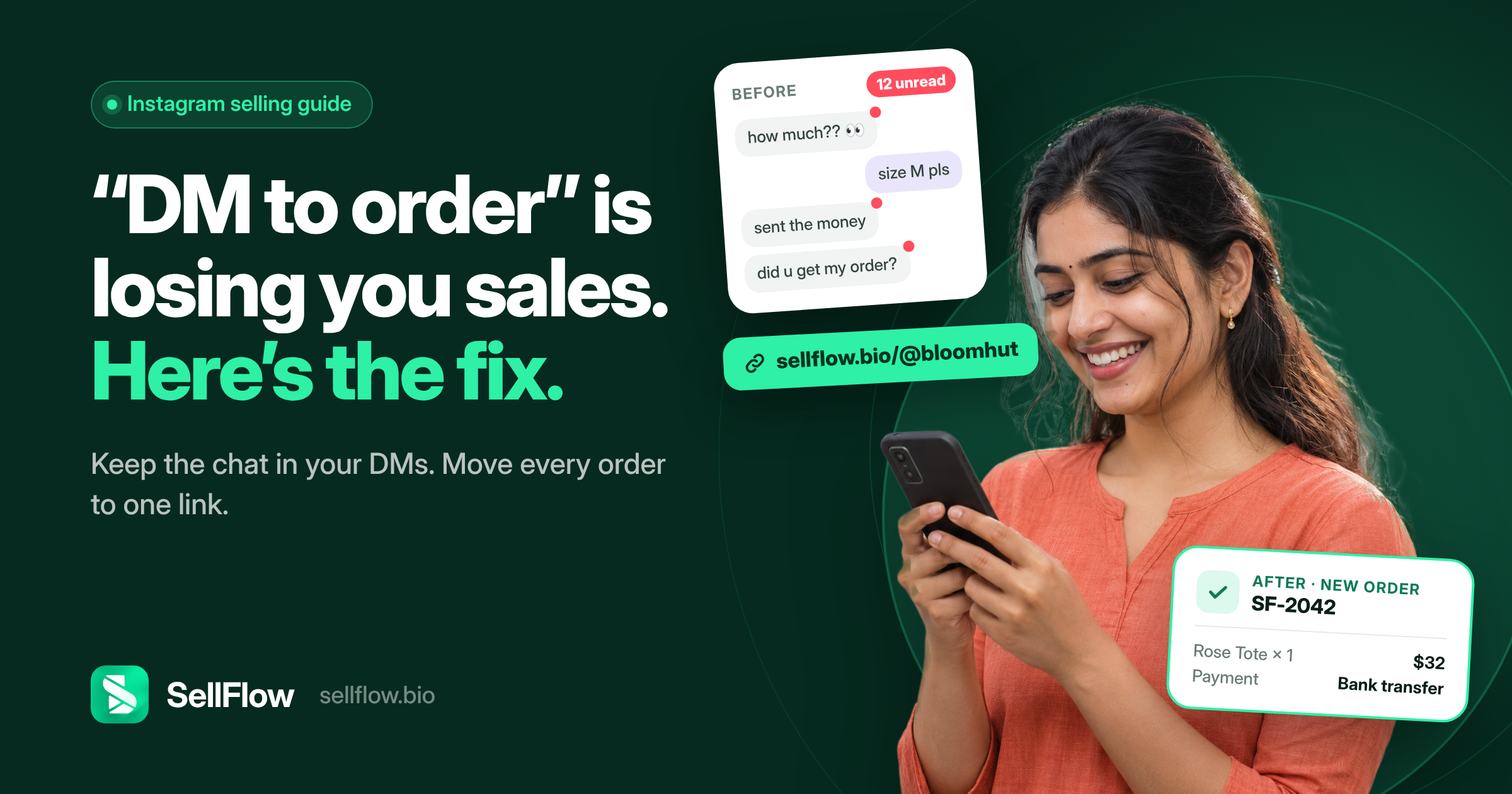
Instagram DM Orders: How to Stop Losing Orders in Your DMs
What "DM to order" means, why DM orders get lost, and how to keep the chat but move each order to one link. Step-by-step setup plus copy-paste replies.

Instagram Checkout Is Gone: Where Your Sales Go Now (2026)
Meta removed in-app checkout from Instagram Shops in 2025. What changed, what still works in 2026, what Meta is testing in ads, and where to send buyers instead.
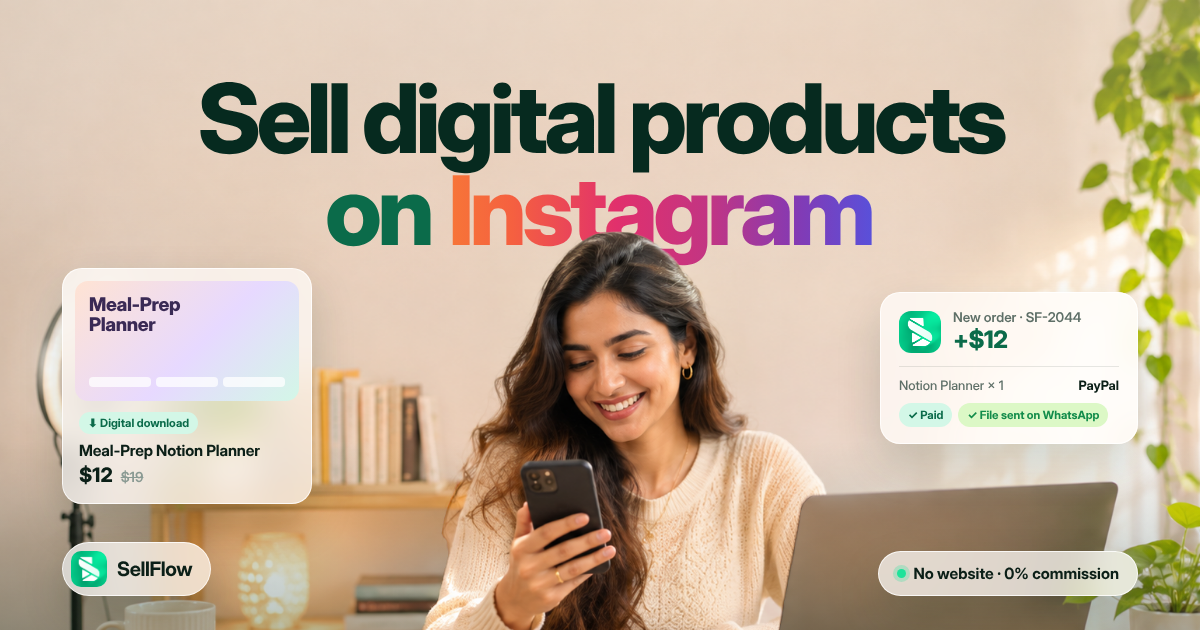
How to Sell Digital Products on Instagram in 2026 (No Website Needed)
How to sell digital products on Instagram without a website: what to sell, how to price it, and how buyers order, pay you directly and get the file.
Ready to sell on social?
Turn your followers into orders with a SellFlow storefront — no payment-gateway friction.
Get started free